
- View General Documentation
- View Network Map
- Setup - Download Command Setup File
- Manned Registration Docs
- Print Badges in Bulk Docs
- HP Printer Driver Setup
- Using the Attendee List
- Common Badge Issues
- Drivers
- Paper Lead Form
- Badge Pick-up Form
- IBK Barcode Scanner Configuration Codes
- Return to QuickView
Tech. Support: 917-642-9850
General Documentation
- 1. Can't access my Event/Show. I get an error message.
- 2. Invalid Logon. Please check your userid or password.
- 3. My screen looks funny. What is wrong?
- 4. I have logged in, but don't see all of the application functions?
- 5. The zip codes for MA, NJ, CT and RI don't have their leading zeros, why?
- 6. The phone numbers are messed up, why?
- 7. I keep being asked to enter a "Workstation ID." What is that and how do I stop it?
- 1
Can't access my Event/Show. I get an error message.
If you are getting the error "unable to locate client", the issue is with your client id.
If you are getting the error "unable to locate show or event", the issue is with your event or show id.
Please consult the email you received from SmartSource to confirm your client ID and or Show ID.
- 2
Invalid Logon. Please check your userid or password.
Please consult the email you received from SmartSource to confirm your email address and assigned password.
- 3
My screen looks funny. What is wrong?
The IBK.NYC Registration application requires a modern browser. Supported browsers are Google Chrome 15, FireFox 15, IE 9, Safari 5.1.7
- 4
I have logged in, but don't see all of the application functions?
If you are on a tablet or smartphone then some of the functions may not be available due to the size of your screen.
- 5
The zip codes for MA, NJ, CT and RI don't have their leading zeros, why?
The data for the zip code was stored as as a number in the Excel file. Excel will trim off the leading zeros. Reexport your data and save the zip code using the text format.
- 6
The phone numbers are messed up, why?
The data for the phone numbers was stored as as a number in the Excel file. Excel will trim off the leading zeros. Reexport your data and save the phone numbers using the text format.
- 7
I keep being asked to enter a "Workstation ID." What is that and how do I stop it?
The Workstation ID is a code used by the system to track each computer using this application. If you were not provided with Workstation IDs by SmartSource, then use your last name and click on the OK button.
if you keep getting the "Workstation ID: popup dialog box and you have done the above step, then your browser does not support cookies. Please perform a Google search for the following term "Enabling Cookies in [Add you browser name here]". Follow the steps suggested.
For Google Chrome use these directions to enable cookies.
For Internet Explorer 8 and 9 use these directions
For Firefox use these directions
Manned Registration Documentation
- 1. How do I look up an attendee?
- 2. How do I add a new Attendee?
- 3. How do I save an Attendee record?
- 4. How do I print a badge for an attendee?
- 5. I have several people from the same company, do I have to key in all of the data for each person?
- 6. Do I have to use the mouse to move about the screen?
- 7. I'm prompted for a Workstation ID. What is this and what do I do?
- 1
How do I look up an attendee?
Locate the Search bar at the top of the screen. The search/find text box has the following text "Search by Last Name, Email or Company Name". Now enter the text to search for. As you type, records that match your search text will be displayed. Click on the record that matches your requirements.
- 2
How do I add a new Attendee?
The system always returns to a blank data input page. If a record has been left on screen, Press the "ctrl" "R" keys. This will reset the screen.
- 3
How do I save an Attendee record?
To save an Attendee Record without printing a badge, Click on the "Save Data Only" menu option located at the top of the screen.
You will be prompted with a "Attendee Data Saved" dialog box. Click on the OK button to continue.
- 4
How do I print a badge for an attendee?
To save an Attendee Record and print a badge, Click on the "Save & Print Badge" menu option located at the top of the screen.
The attendees' badge will be displayed in a new window.
Press the "ctrl" "P" keys to bring up the print dialog box.
In the print dialog window, set the Margins: to none, Turn off all margin information and turn off all heading information
Click on the Print button
Close the Badge window. This will reset the Manned Registration screen for the next attendee
- 5
I have several people from the same company, do I have to key in all of the data for each person?
No, Find or Add the first person from the group. Print their badge
for the 2nd to the last people in the group do the following:
- 1. Find the first person of the group using the Search function.
- 2. Click on the first person of the group from the displayed list.
- 3. Click on the "Reuse This Badge" menu option. This will blank the First and Last Names.
- 4. Enter the new attendee's first and last name. You may also need to enter the attendee's phone and email address.
- 5. Click on the "Save & Print Badge" menu option located at the top of the screen.
- 6. Repeat these steps for each of the people in the group. For the additional attendees, click on the "Recall Last Search" instead of performing an attendee search.
- 6
Do I have to use the mouse to move about the screen?
No, you can use the TAB key to move from field to field.
- 7
I'm prompted for a Workstation ID. What is this and what do I do?
This is how the system tracks each computer attached to it. Enter the workstation ID as provided by SmartSource and click on the OK button. If no Workstation ID was provided, then enter your last name.
Print Bagdes in Bulk Documentation
- 1
How do I print badges in Bulk?
Printing badges in bulk usually requires 6 up badge stock. The more names to print the longer it takes to load. While loading the mouse cursor will have an hourglass icon. The badges will auto resize (shrink text too long to fit) once all of the badges have been loaded from the database.
BEFORE YOU PRINT ON BADGE STOCK ALWAYS TEST ON PLAIN PAPER FIRST. This allow you to test or see any issues that may arise before you waste expensive badge stock.
To print badges in bulk, follow these steps:
- 1. Log in to the system, if you don't see the "View Attendee List" button on the left side of the screen.
- 2. Click on "View Attendee List" menu button. This will open an new window showing the "Attendee Viewer".
- 3. Filter the Attendee List as needed.
- 3. Click on the "Print Displayed Badges in Bulk" menu option.
- 4. A dialog box prompting you if you are sure you want to print these badges will be displayed. Click on the "OK" button.
- 5. A 2nd dialog box will inform you that the badges are ready to print. Click on the "OK" button.
- 6. A new window will be opened displaying the badges to print. It may take up to two minutes for all of the badges display.
- 7. Press the "ctrl" "P" keys to bring up the Print dialog box.
- 8. In the print dialog window, set the Margins: to none, Turn off all margin information and turn off all heading information
- 9. Click on the Print button
Export Data
- 1
How do I export my data?
All data will be exported in MS Excel 2007 format
To export attendee data, follow these steps:
- 1. Log in to the system, if you don't see the "View Attendee List" button on the left side of the screen.
- 2. Click on "View Attendee List" menu button. This will open an new window showing the "Attendee Viewer".
- 3. Filter the Attendee List as needed.
- 3. Click on the "Export Selected" menu option.
- 4. A dialog box prompting you if you are sure you want to export these badges will be displayed. Click on the "OK" button.
- 5. A 2nd dialog box will inform you that the "Selected Attendees Exported". Click on the "OK" button.
- 6. An excel file will now download.
Using the Attendee List
- 1
How do I view the Attendee List?
- 1. Log in to the system, if you don't see the "View Attendee List" button on the left side of the screen.
- 2. Click on "View Attendee List" menu button. This will open an new window showing the "Attendee Viewer".
- 2
How do I sort the Attendee list?
To sort the attendee data, click on the double arrows to the right of the column name. The first time you click on the arrows will sort the data from A to Z. The second time you click on the arrow, will sort from Z to A.
- 3
What is filtering?
There can be a lot of data displayed by the Attendee List. Filtering the data allows you to limit the amount of data displayed. You filter the data using the text boxes under the column name. You can use multiple filters at one time. Your Filters are kept from one list to another.
Common Badge Issues
- 1
How do I configure IE to print my badges?
- 1. Click on "file" menu and select the "Page Setup" option.
- 2. Make your dialog box look like this.
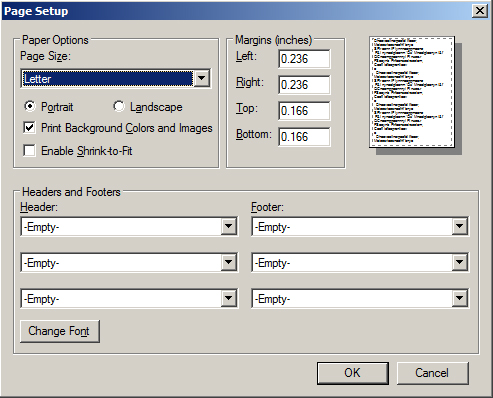
- 3. Click on "Ok" button to save the settings.
- 2
How do I configure Chrome to print my badges?
- 1. Press the "ctrl" "p" keys.
- 2. Make your dialog box look like this.
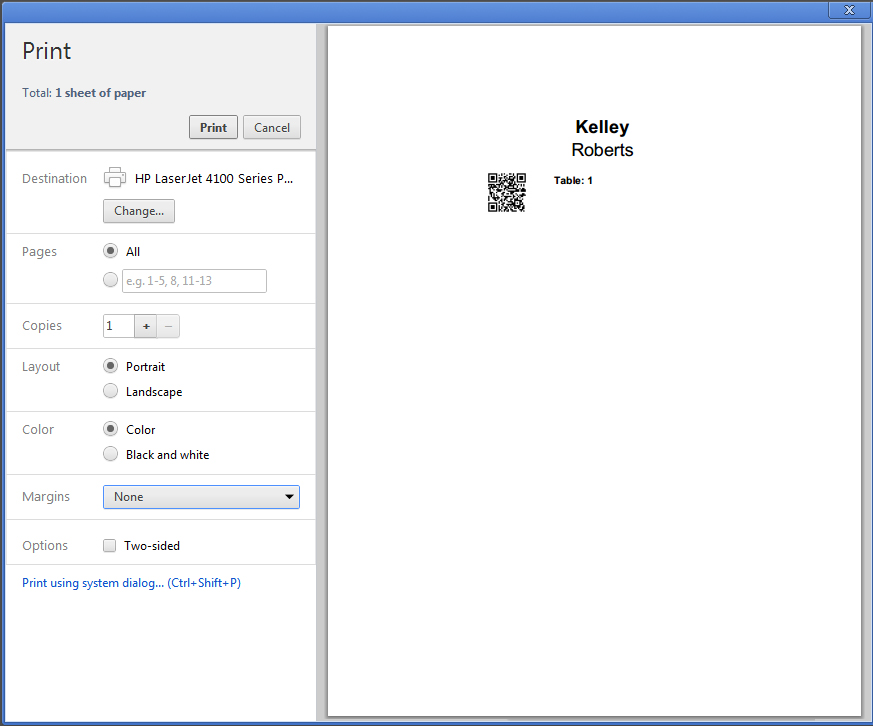
- 3. Click on "Print" button to print the badge and save the settings.
- 3
I'm getting an ARRAY(0x141d814) error on my badge?
This is caused by a dulpicate badge field. Open the Manned Reg form and see if their are more then one First name or Last name fields. To cure this issue, remove the duplicate fields.
- 4
The barcodes are not scanning, now what?
All barcode are tested before your event to work, however a bad printer, bad paper stock, or a bad scanner can lead to scanning issues. We have a paper lead recording form to allow exhibitors to record the 5 or 6 digit id number located under the barcode. Once recorded, the exhibitor can send us the form and we will return their leads in an excel file.
Click on the "Paper Lead Form" from the menu to the left to open the Pape Lead Form. Print the form via the web browser. Forty four leads can be collected using this form.
Drivers
- 1
Epson TMC 3400 Drivers
HP Driver Setup for Morgan Stanley
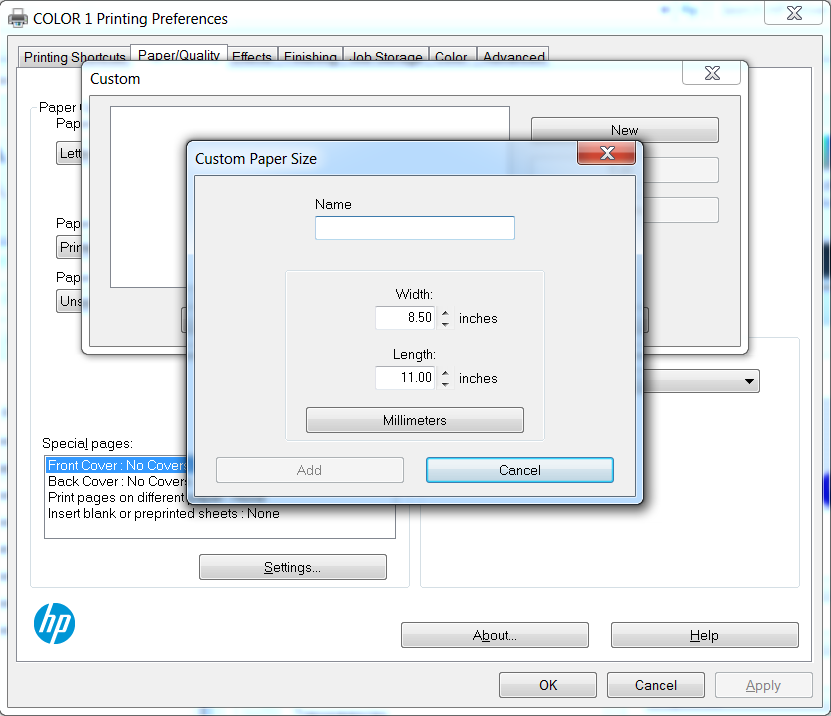
Morgan Stanley uses a single column badge layout and requires the HP driver to be configured to allow this unique size otherwise the printer will print badges one every minute.
- 1
Configure Microsoft Windows?
- 01. Open the Devices and Printers control panel
- 02. Right Click on the HP Printer and select Printer Preferences
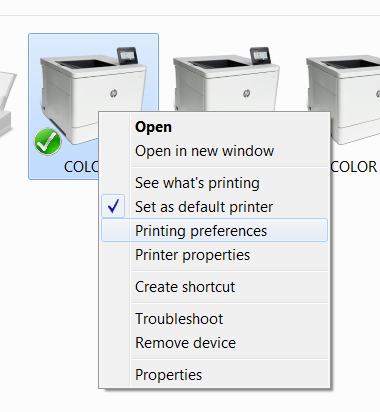
- 03. The HP Driver screen will now appear
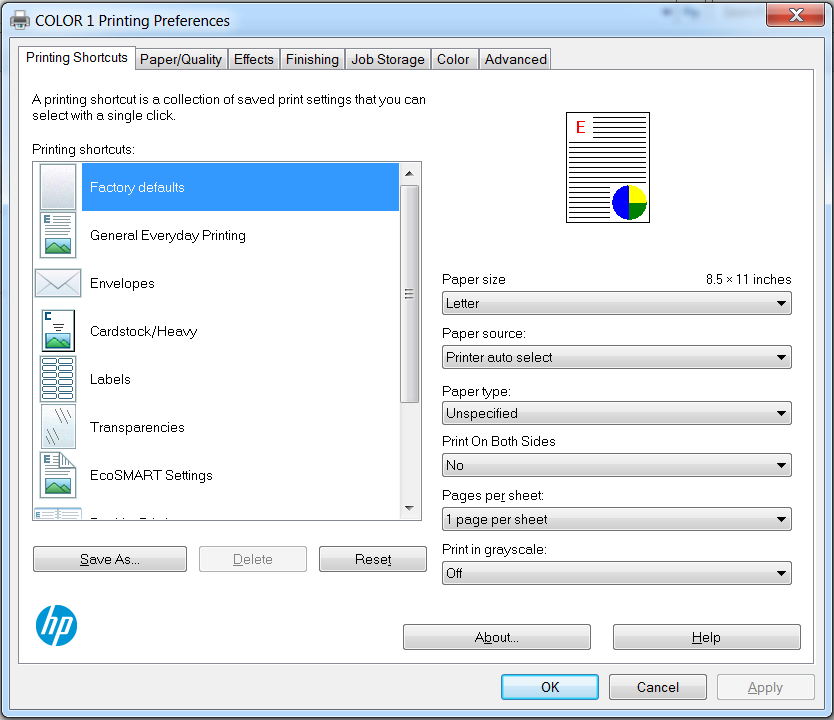
- 04. Click on the Paper Quality tab
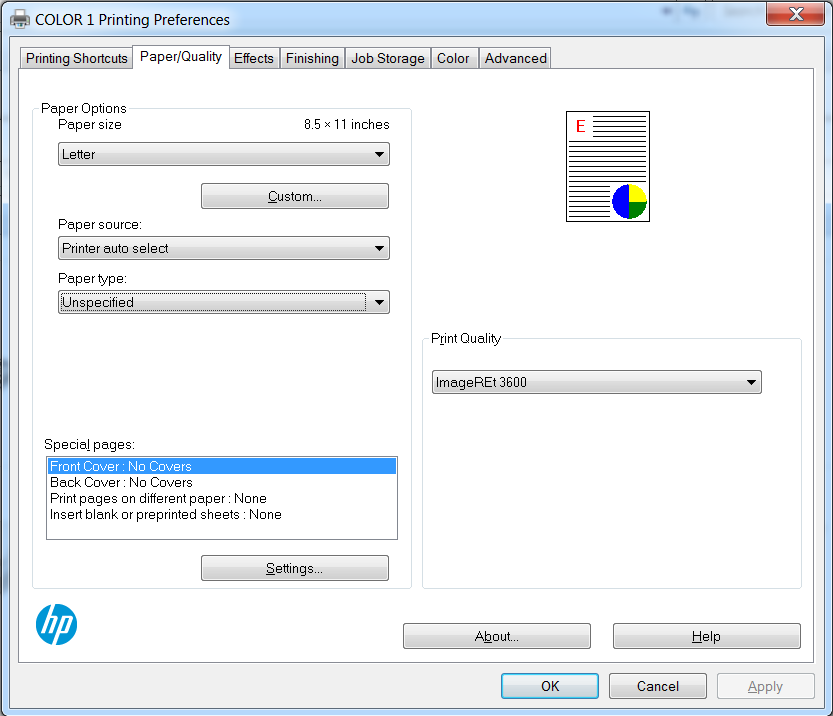
- 05. Click on the Custom Button under Paper Size. The Custom Dialog will appear
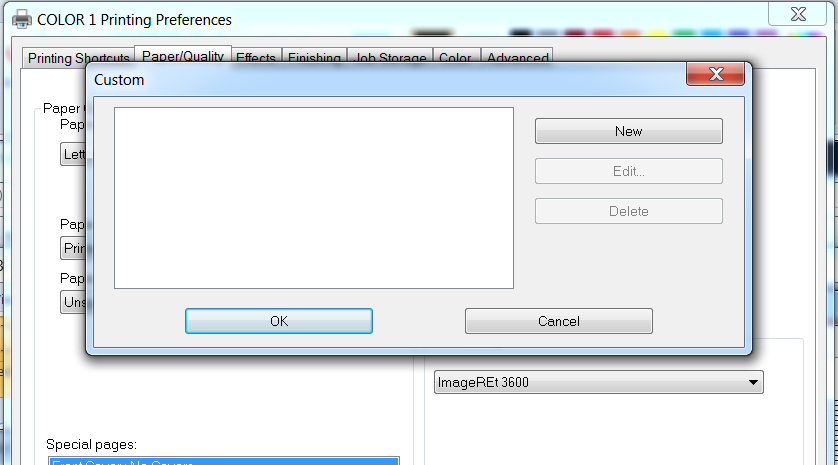
- 06. Click on the New Button. The Custom Paper Size Dialog will appear
- 2
How do I configure Chrome to print my badges?
- 1. Press the "ctrl" "p" keys.
- 2. Make your dialog box look like this.
- 3. Click on "Print" button to print the badge and save the settings.
- 3
I'm getting an ARRAY(0x141d814) error on my badge?
This is caused by a dulpicate badge field. Open the Manned Reg form and see if their are more then one First name or Last name fields. To cure this issue, remove the duplicate fields.
- 4
The barcodes are not scanning, now what?
All barcode are tested before your event to work, however a bad printer, bad paper stock, or a bad scanner can lead to scanning issues. We have a paper lead recording form to allow exhibitors to record the 5 or 6 digit id number located under the barcode. Once recorded, the exhibitor can send us the form and we will return their leads in an excel file.
Click on the "Paper Lead Form" from the menu to the left to open the Pape Lead Form. Print the form via the web browser. Forty four leads can be collected using this form.